
Laptop feels hot: is it actually overheating?
Laptops are designed to move heat away from the processor and graphics hardware, so warmth around the exhaust, keyboard or underside can be normal under load. The more useful question is whether the heat is changing how the laptop behaves.
Warning signs include performance falling after the machine warms up, a fan that becomes unusually loud or develops a grinding or rattling sound, little airflow from the exhaust, repeated thermal shutdowns, or heat appearing during workloads that were previously handled normally.
If the only symptom is fan noise, our laptop fan and cooling guide explains when a busy fan is normal and when the pattern deserves investigation.
Use the overheating symptom as evidence
| What you notice | Investigate first | Why |
|---|---|---|
| Hot, but performance stays normal | Workload and normal cooling behaviour | Warm surfaces alone do not prove a fault |
| Fan constantly loud | Temperature, workload, airflow and fan condition | The fan may be responding correctly or working harder than expected |
| Fast when cold, slow after 10–20 minutes | Temperatures and clock behaviour | Thermal or power limits may reduce performance |
| Rattling, grinding or intermittent fan | Fan condition | Mechanical fan wear can reduce reliable airflow |
| Very little air from the exhaust | Fan, vents and heatsink path | Restricted airflow can prevent heat leaving the chassis |
| Shuts down during heavy work | Cooling, power and hardware stability | A shutdown is more serious than a warm case |
| Gaming performance drops after a few minutes | CPU/GPU temperature, power and clocks | Gaming loads several heat-producing components together |
| Case or trackpad is lifting or distorted | Battery condition | Stop using the device if battery swelling is suspected |
Laptop fan loud, rattling or running constantly
A loud fan does not automatically mean the fan is faulty. It may be responding to high CPU or GPU load, blocked airflow, high ambient temperature or background software. A mechanical rattle, grinding sound, fan that repeatedly stops, or weak airflow despite high temperature is more suggestive of a cooling-system problem.
Do not insert tools into a running fan or spray compressed air blindly into a laptop. If the exact fan path and internal design are unknown, diagnosis is safer than forcing debris deeper into the cooling assembly.
Laptop gets slower after it has been running for a while
This pattern is particularly useful. Modern processors and graphics chips can reduce performance to remain within thermal or power limits. If the laptop is responsive when cold but loses speed after several minutes, compare temperatures, fan behaviour and performance under the same workload.
Our slow laptop diagnosis guide separates heat-related slowdown from storage, RAM, Windows and background-software bottlenecks.
Laptop overheats and shuts down
An unexpected shutdown under load deserves more caution than a laptop simply feeling hot. Cooling can be involved, but power delivery, battery behaviour, motherboard faults and software crashes can produce similar symptoms.
Avoid repeatedly stress-testing a machine that is shutting itself off. Our random laptop shutdown guide explains how heat, battery, power and board symptoms overlap.
Laptop overheating while gaming
Gaming raises CPU and GPU load together, so higher fan speed and temperature are expected. The useful warning signs are sustained performance loss, stuttering that appears as the machine warms up, abnormal fan behaviour or shutdowns.
If frame rate starts normally and falls after a few minutes, see our gaming laptop FPS-drop guide. It covers heat, power and software causes without assuming temperature is the only explanation.
Why does my laptop get hot while charging?
Charging can add heat, and many laptops also use different performance limits when connected to mains power. That means a machine may run harder while plugged in than it does on battery. Heat while charging is therefore not enough to diagnose a fault by itself.
Stop using the laptop and disconnect it from power if you notice battery swelling, a lifting trackpad or case, unusual chemical smells, smoke or severe localised heat around the battery or charging area.
Can dust cause a laptop to overheat?
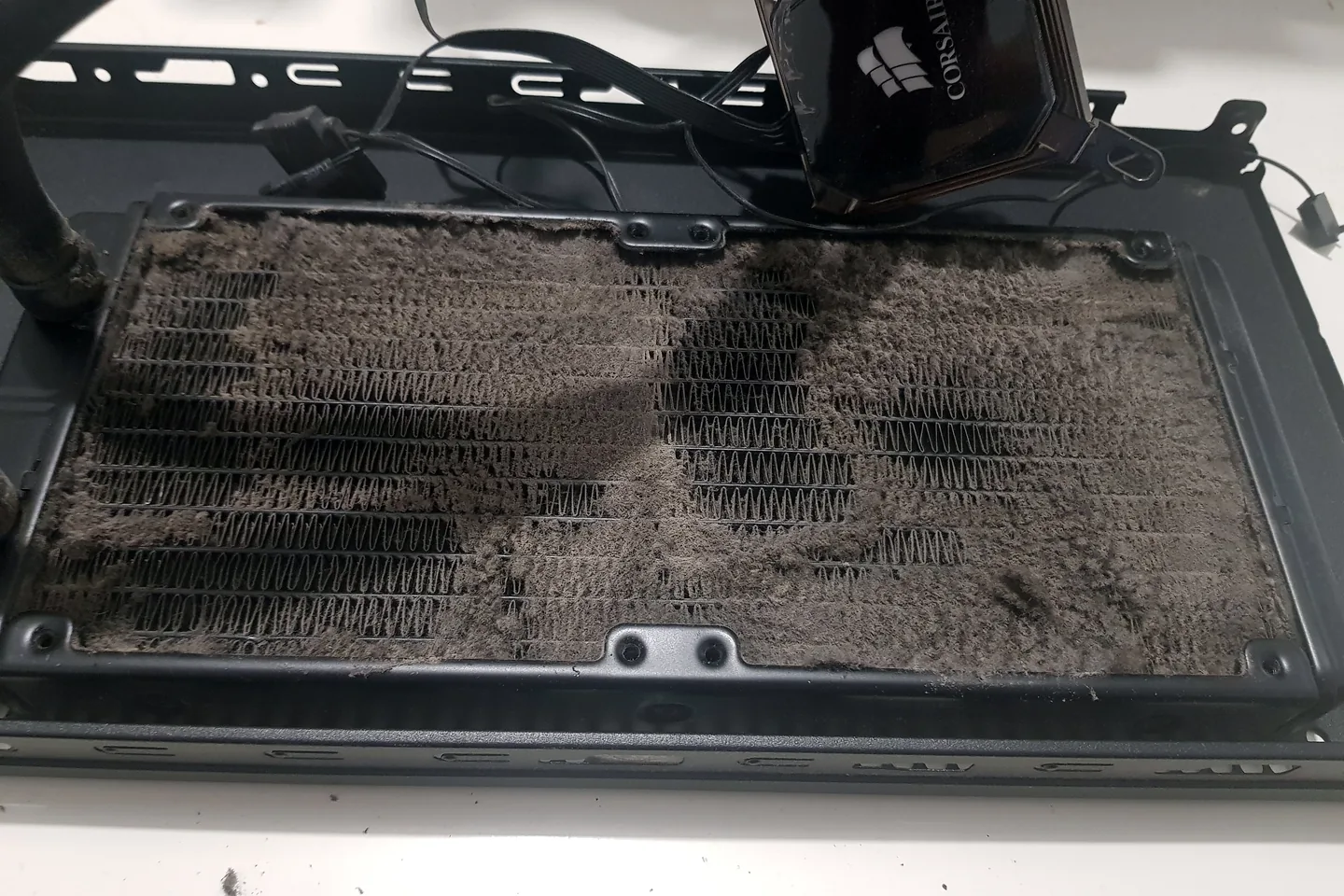
Yes. Dust can collect around intake vents, fan blades and heatsink fins, reducing the amount of air that can carry heat out of the laptop. But visible dust is not proof that cleaning is the whole repair.
A useful service checks the cooling system before and after work. Our laptop servicing guide explains why temperatures, fan operation and overall condition matter more than simply opening the machine and blowing out dust.
Does an overheating laptop need new thermal paste?
Not automatically. Thermal interface material helps transfer heat between a chip and its cooler, but overheating can also come from blocked fins, fan failure, poor heatsink contact, workload, power settings or another hardware problem.
Thermal material should be treated as one part of the cooling system, not a universal cure. The exact laptop design also matters: some systems use thermal pads, phase-change material or model-specific interfaces that should not be replaced casually with a generic paste.
Cleaning, a new fan or a cooling-system repair?
Cleaning may help
When airflow is restricted by dust and the fan itself is operating correctly.
Fan replacement may be needed
When the fan has mechanical wear, does not start reliably or cannot maintain expected airflow.
Cooling-system work may be needed
When heatsink contact, thermal interface, mounting or another part of the heat path is the problem.
It may not be a cooling fault
Heavy software load, battery or power faults can imitate some overheating symptoms.
The repair should follow the evidence. Replacing a fan that is already working, or changing thermal paste without checking airflow and temperatures, can add cost without fixing the actual cause.
Safe checks before paying for a repair
- Use the laptop on a hard, flat surface rather than bedding or soft furnishings that can obstruct vents.
- Note whether the problem occurs at idle, during video calls, gaming or another repeatable workload.
- Check whether performance changes after the laptop has warmed up.
- Listen for rattling, grinding or a fan that repeatedly starts and stops.
- Check that external vents are not obviously obstructed.
- Back up important data if the machine remains stable enough to do so.
- Stop testing if the laptop repeatedly shuts down, smells burnt, shows battery swelling or becomes dangerously hot.
Do not rely on one universal temperature number. Normal operating limits vary by processor, GPU, laptop design, workload and manufacturer control strategy.
Laptop overheating diagnosis in Birmingham
At PC Repair Guru, we diagnose overheating and cooling problems from our appointment-only Small Heath workshop in Birmingham. We look at the symptom pattern, temperatures, fan behaviour, airflow and performance before recommending cleaning or replacement parts.
If hands-on testing is needed, see our laptop repair service in Birmingham. The aim is to identify whether the laptop needs cleaning, fan work, cooling-system attention or diagnosis of a different fault rather than assuming every hot laptop needs the same repair.
Frequently asked questions
When is a laptop actually overheating?
A warm laptop is not automatically overheating. More useful warning signs are sustained high temperatures with performance loss, thermal throttling, unusually loud or abnormal fan behaviour, repeated shutdowns, or heat that appears under workloads the laptop previously handled normally.
Can dust cause a laptop to overheat?
Yes. Dust can restrict airflow through vents, fans and heatsink fins. But heat can also come from a failing fan, poor heatsink contact, heavy workload, power behaviour or another hardware fault, so cleaning should follow diagnosis rather than replace it.
Does an overheating laptop always need new thermal paste?
No. Thermal material can be part of a cooling problem, but not every hot laptop needs it replaced. Airflow, fan operation, heatsink condition, workload and the exact cooling design should be checked first.
Why does my laptop get slower when it gets hot?
Processors and graphics chips can reduce performance to remain within temperature or power limits. If a laptop is fast when cold but slows after several minutes, temperatures, fan behaviour and clock speeds are useful evidence.
Can PC Repair Guru diagnose laptop overheating in Birmingham?
Yes. We can check temperatures, fan operation, airflow, cooling-system condition and performance under load before recommending cleaning, fan replacement or other repair work.